

Fan modes
4
Ways to run your fans.
Let macOS decide, boost when a sensor crosses a threshold, drag a curve, or set the speed yourself. Then save your own named modes.
SystemAuto BoostCurveManual+ your own
Free and open-source apps for macOS
Tuuli cools. Kaiku listens. Kiito scrolls.
Each one does a single job, lives in your menu bar, and costs nothing. The code is open, the license is GPL-3.0, and the apps are yours to keep.

Tuuli · Finnish for “wind”
Temperatures in your menu bar and real fan control for Apple Silicon Macs.
macOS 26 or later · Apple Silicon · Free, GPL-3.0
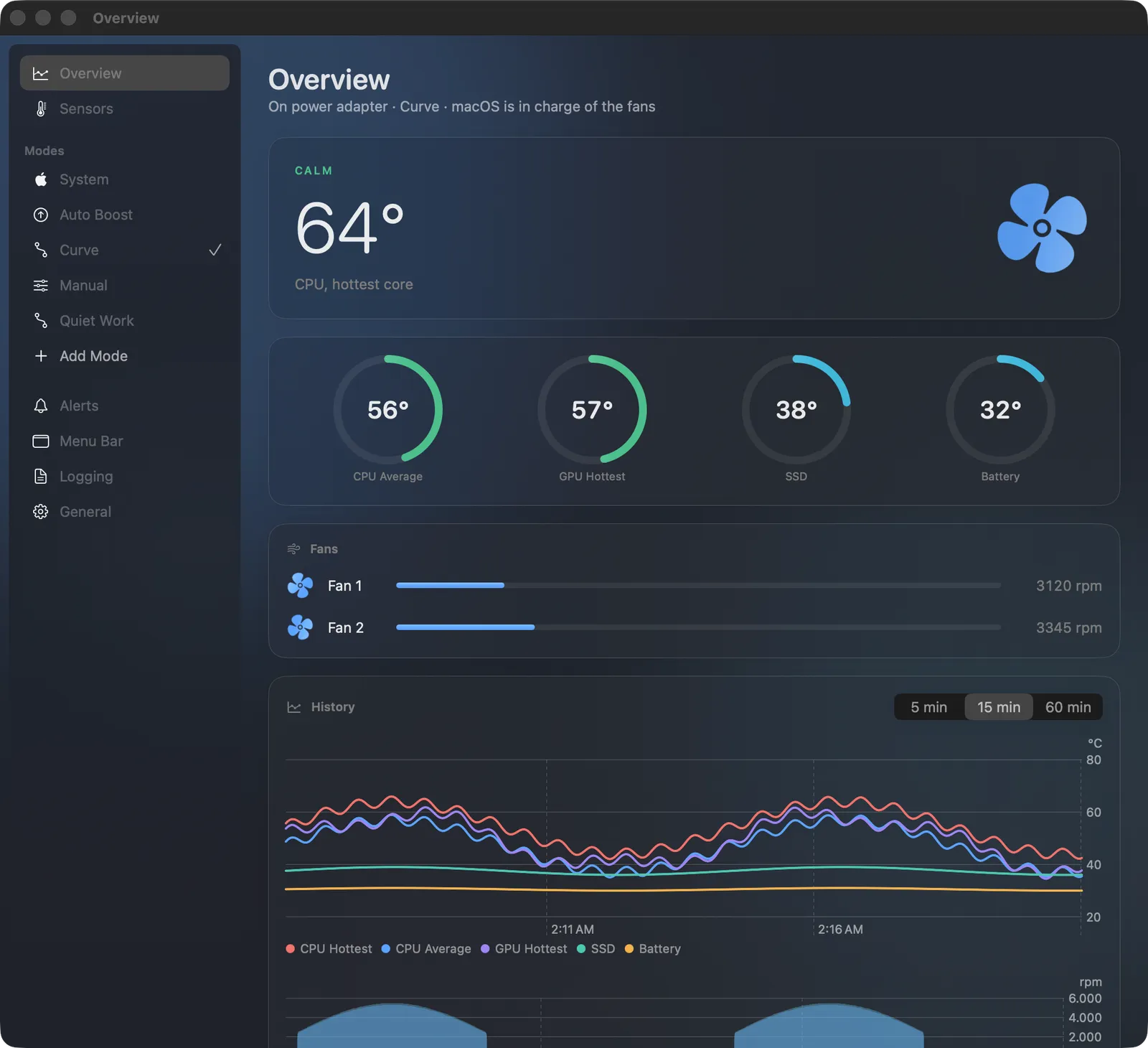
Tuuli finds your CPU, GPU, SSD and battery sensors on its own, and keeps a history you can look back through.
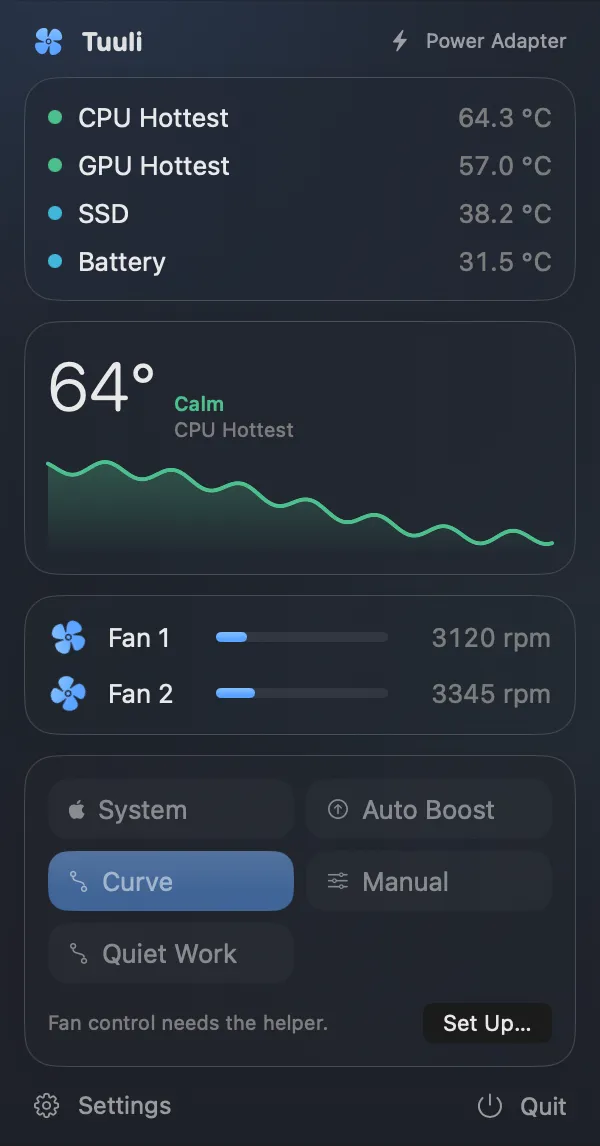
Readings sit in the menu bar. One click opens a popover with temperatures, fan speeds and modes.
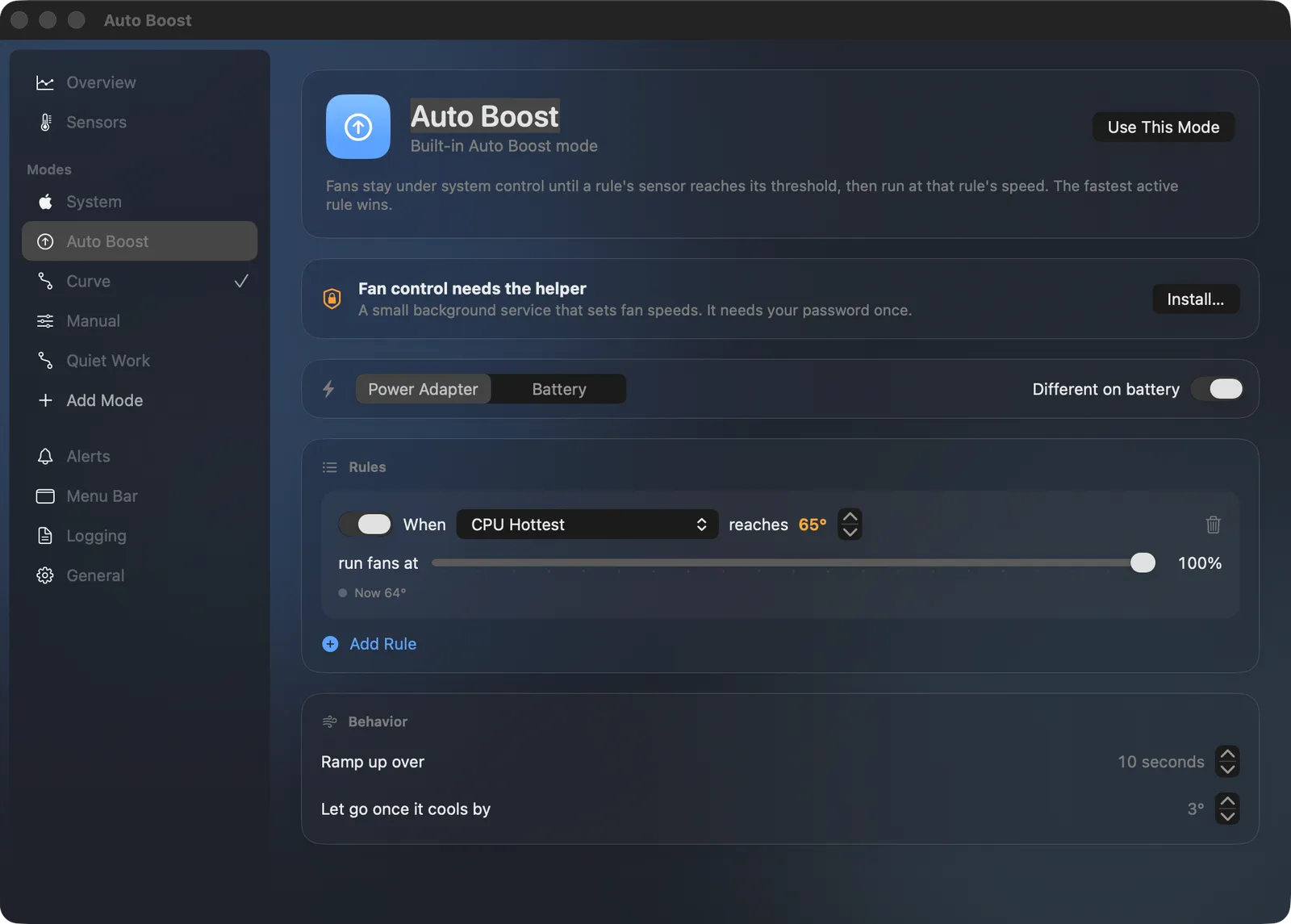
System, Auto Boost rules, a draggable Curve or Manual. Save your own named modes, with separate settings on battery.
Try it · Curve mode
Drag the points to shape the curve, then change the temperature and watch the fan follow.
Fan modes
4
Let macOS decide, boost when a sensor crosses a threshold, drag a curve, or set the speed yourself. Then save your own named modes.
Fail-safe
Whatever happens, your fans go straight back to macOS.
Sensors
On battery
Separate settings for when your Mac runs on battery.
Keep an eye on it
Look back at your temperatures, get alerted, and log everything to CSV.
Requirements
Version 0.1.1, free under GPL-3.0.

Kaiku · Finnish for “echo”
Record and transcribe your calls without anything joining the meeting. No subscription, and the files stay on your Mac.
macOS 14.2 or later · Apple Silicon and Intel · Free, GPL-3.0
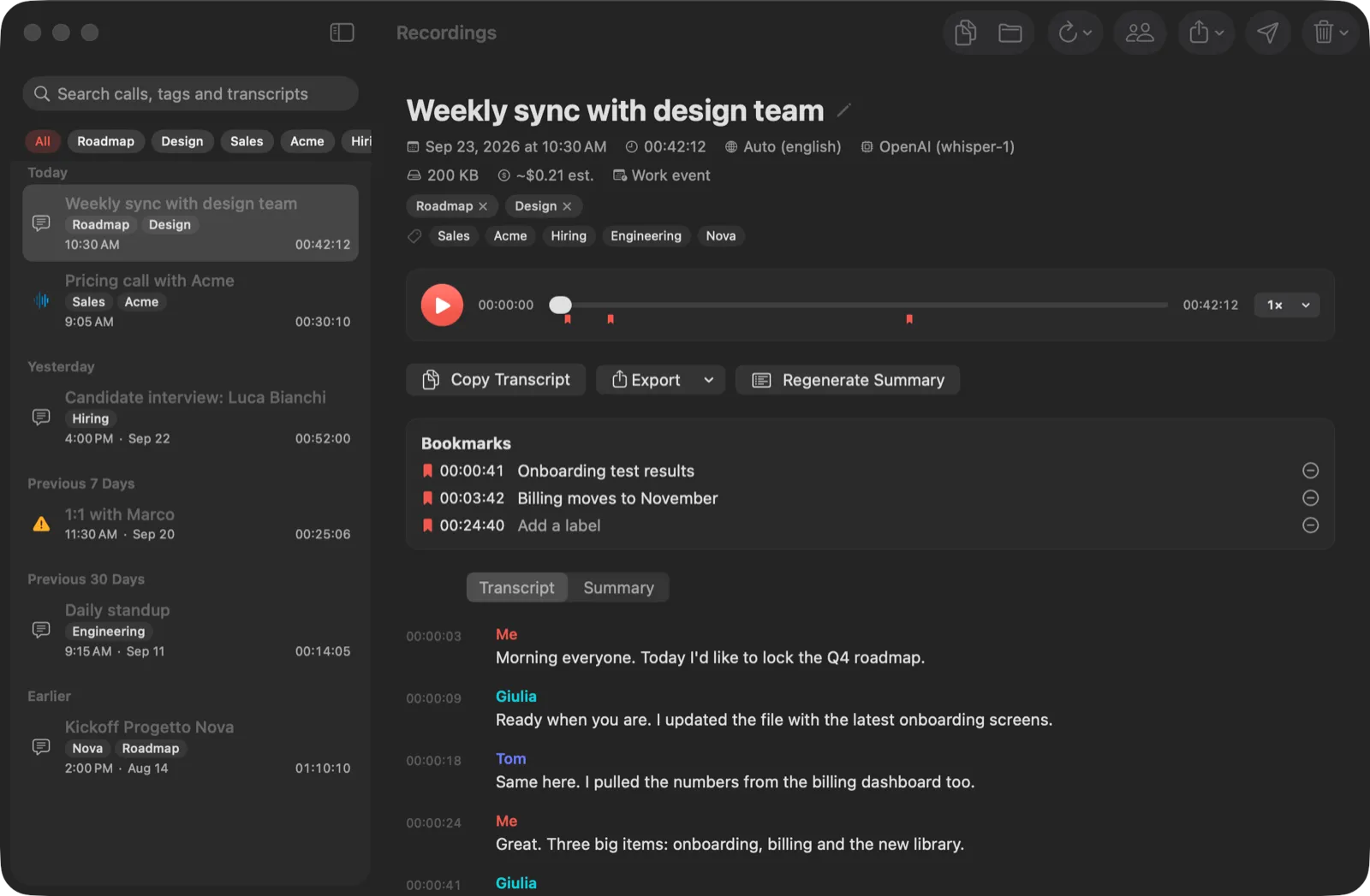
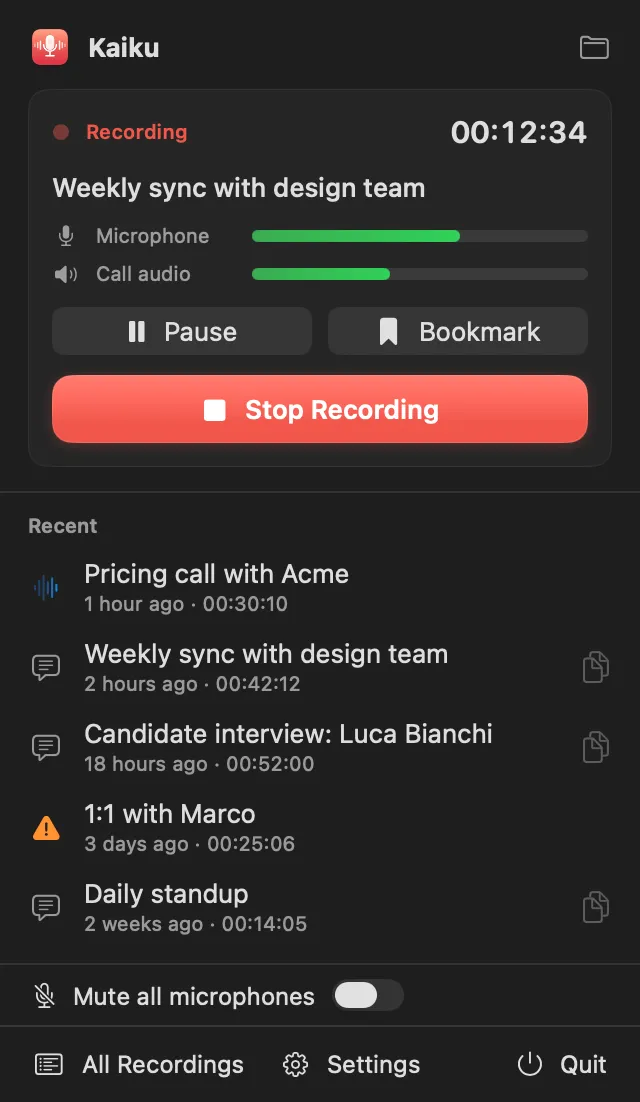
Kaiku captures your microphone and the call audio. Add a title and tags as you start, pause when you need to, and drop bookmarks as you go.
Search every call, play it back, and click any line of the transcript to jump right there. Speakers are labelled, and you can rename them.
Export to Markdown, TXT, SRT, VTT or DOCX, or send it to a webhook. Add a summary with your own key if you want one.
Watch it work

Meeting bots
0
Kaiku records on your Mac. Nobody else shows up in the participant list.
Subscriptions
0
Recordings and transcripts live on your Mac.
Transcription
whisper.cpp is bundled and runs locally. Prefer a cloud engine? Pick ElevenLabs, OpenAI or Groq.
Privacy switch
Option-click to mute every microphone at once.
Export
5
Speakers
Speaker labels on every transcript, and you can rename them.
Automatic
Meeting auto-detection, and titles taken from your calendar.
While you record
Pause mid-call and bookmark the moments that matter, then find them again in the player.
Workflow
Send recordings to a webhook, and generate an optional summary with your own API key.

Kiito · Finnish for “a swift dash”
Hold a mouse button and roll the trackball to scroll. The cursor stays exactly where it is.
macOS 26 or later · Apple Silicon · Free, GPL-3.0
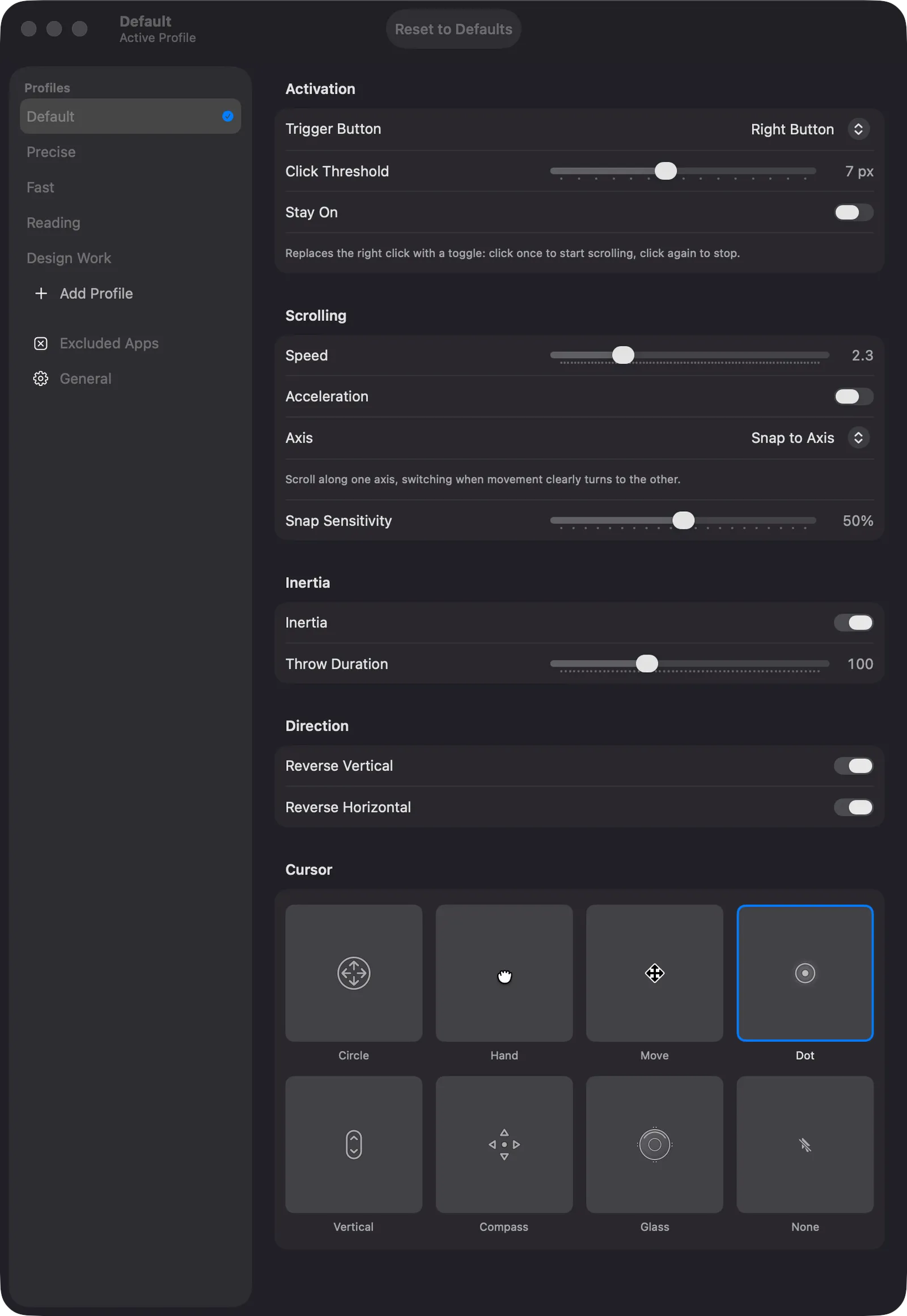
Hold a mouse button and move the trackball. The page scrolls, and the cursor doesn’t move an inch.
Speed, acceleration, inertia and per-axis reversal. Scroll freely in 360°, snap to an axis, or lock it.
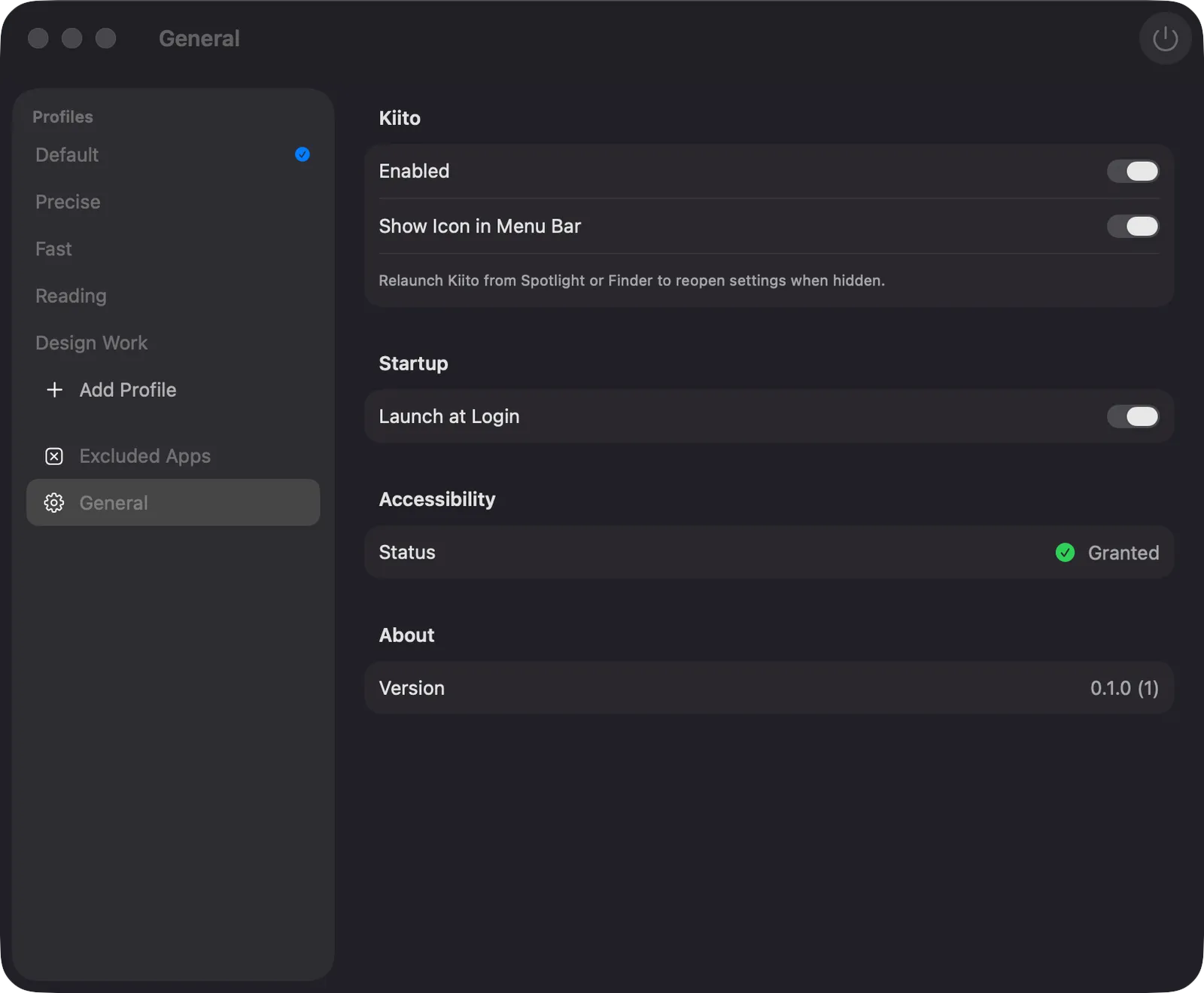
Exclude the apps where you don’t want it, and hide the menu bar icon if you prefer.
Try it · No trackball needed
Press and hold inside the window, then move. The page dashes along as fast as you move, while the pointer stays where you pressed. Let go and it glides on.
Keyboard: focus the window and use the arrow keys.
Cursor styles
8
Axis
360°
Scroll freely in every direction, snap to an axis, or lock to one.
Feel
Let a scroll glide on after you stop, and reverse each axis on its own.
Profiles
4+ yours
Default, Precise, Fast and Reading are built in. Add as many of your own as you like.
Clicks
Pass-through click keeps the trigger button useful. Or turn on Stay On: click once to start scrolling, again to stop.
Manners
Per-app exclusions, and a menu bar icon you can hide.
Made for trackballs
Choose which button triggers scrolling, set the speed and acceleration, and keep your cursor exactly where you left it.
All three apps are released under GPL-3.0. No price tag, no subscription. Read every line, build them yourself, or send a pull request.
GNU General Public License v3.0
Menu bar temperatures and fan control for Apple Silicon.
Record and transcribe calls, with no bot and no subscription.
Hold a button, roll the trackball, scroll. The cursor stays put.
Before you open them
The apps are signed ad hoc and not notarized by Apple, so macOS asks you to confirm the first time you open each one. It takes a few seconds.
Open the .dmg and drag the app into your Applications folder.
macOS says it can’t verify the developer and won’t open the app. Close that message.
Go to System Settings › Privacy & Security, scroll down, click Open Anyway and confirm. From then on the app opens normally.
They’re small tools made for everyday use on a Mac, and they’re released under GPL-3.0. That keeps them free and the code open for anyone to read, build or improve.
Short Finnish words are easy to say and easy to remember. Tuuli means “wind”, Kaiku means “echo”, and Kiito is a swift run, a dash, from the verb kiitää, to speed along. Each one describes what the app does.
Tuuli and Kiito work entirely on your Mac. Kaiku keeps recordings and transcripts on your Mac too.
Audio leaves your Mac only if you choose a cloud transcription engine (ElevenLabs, OpenAI or Groq), and summaries use your own API key. With the bundled whisper.cpp, transcription stays local.
No. None of the apps include analytics or telemetry. Tuuli and Kiito make no network requests at all. Kaiku only sends audio to the transcription provider you choose, and with the bundled whisper.cpp nothing leaves your Mac. The code is open, so you can check.
Download the latest release from GitHub and replace the app in your Applications folder. This page always shows the newest version. If macOS asks again, repeat the Open Anyway step.
Want a heads-up? Watch the repository on GitHub and choose “Releases only”.
Kaiku is universal: it runs on Apple Silicon and Intel, from macOS 14.2. Tuuli and Kiito are built for Apple Silicon only and need macOS 26.